Organise the job
Set up the scope, client and inspection details. Keep jobs and their supporting records together.
 Inspection Suite
From inspection records and procedure development to evidence and finished reports. Choose your discipline, then explore the tools behind it.

Inspection records, technical evidence and company-branded reports across NDT methods.
Explore NDT
Weld inspection, joint and run planning, procedure development and qualifications.
Explore Weld
Vessel registers, inspection plans, thickness measurements and condition history.
Explore Vessel
Macro, tensile and Charpy test records with connected results and supporting evidence.
Explore MechanicalNDT INSPECTION & REPORTING
Manage UT, PAUT, MT, PT and RT inspection records, capture evidence and build company-branded reports. From job setup to the final report, keep your inspection work together.
Try the demo without an account. Fictional records only.
Fictional branding with anonymised training scan data. Try the NDE import card. Changes reset on refresh.
Scope, records and inspection photos, kept with the job.
Bring available scan data into your report. Less retyping.
Your details, your templates and a clear PDF output.
WELD INSPECTION & PROCEDURE DEVELOPMENT
Adjust joint geometry, dimensions and weld runs in the interactive builder. Rotate the model to inspect the setup, then connect procedure development with WPS, PQR / WPQR, welder qualifications and inspection records.
Try the builder beside this section. Demonstration geometry is not a qualified welding procedure.
Demonstration geometry only. Not a qualified welding procedure. Changes reset on refresh.
VESSEL INSPECTION SUITE
Bring inspection plans, thickness measurements and condition records together. Document findings and follow-up actions so the inspection history stays with the vessel.
Vessel registers · Inspection plans · Thickness · Follow-up actions
Try the 3D vessel builder beside this section. Fictional examples only.
Fictional demonstration only. Not inspection results or acceptance evidence. Changes reset on refresh.
MECHANICAL INSPECTION SUITE
Organise macro examinations, tensile tests and Charpy impact test records. Keep results, specimen details and supporting evidence connected to the test and its report.
Macro examinations · Tensile tests · Charpy impact tests
Try the editable tensile test report beside this section. Fictional examples only.
Fictional demonstration only. Not inspection results or acceptance evidence. Changes reset on refresh.
A FULL PAUT VIEWER · ANDROID APP
Take your scan review with you. Open supported PAUT scan files on your phone, explore A-scan, S-scan and B-scan views, adjust gates and display settings, and inspect measurements and overlays. Run AI Analysis with one tap to help identify potential indications—then review the evidence yourself.
From reviewed indications to your report—without retyping. After interpreting the indications detected by AI, automatically import your reviewed findings into the report’s indication table. You stay in control of interpretation and acceptance; the app handles the transfer.
A working pocket-sized scan viewer, not just a report preview. See the actual Android app below, using the same training scan as the report example. Expand “Example analysis” to explore a separate recorded GR1 review—no live AI request on this page.
Available data depends on the file. Inspection findings and acceptance remain yours to review.
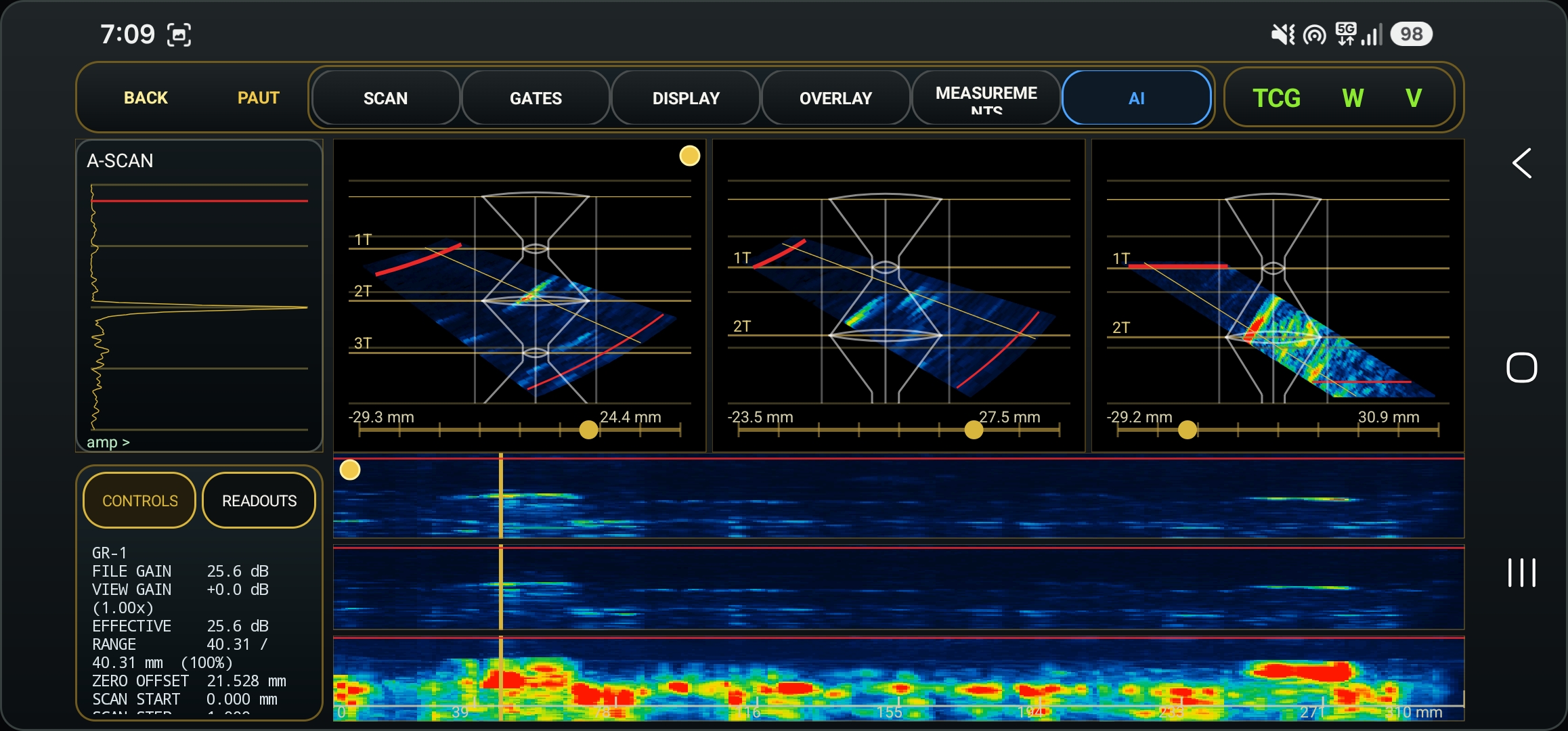
Potential indications—review required. This example was found with one press of the app’s AI Analysis button, as confirmed by the operator. Website markers are manually positioned visual guides, not flaw sizing. This is an actual app screenshot; its controls are not active on this page.
The recorded review below uses the earlier extracted GR1 views. Screenshot markers are separate and are not mapped to these analysis results.
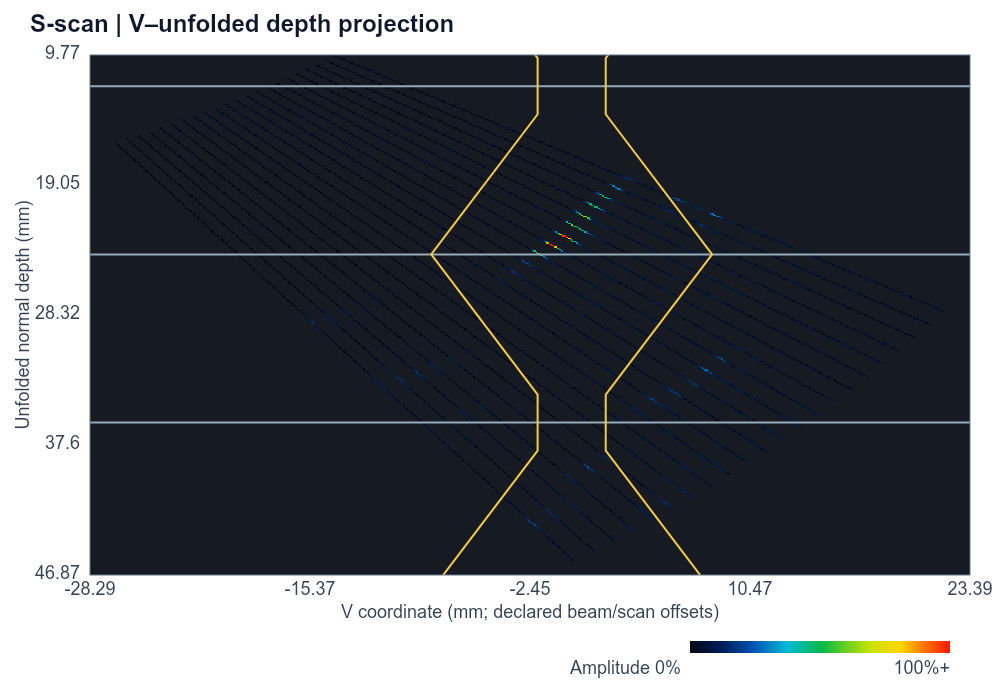
Select a response to inspect its scan and recorded AI review.
A pronounced, repeated high-amplitude loop is present across multiple beams. Location and pattern are consistent with a significant reflector or interface interaction.
Interactive mobile preview. Tap a response or switch scan views.
Set up the scope, client and inspection details. Keep jobs and their supporting records together.
Add inspection photos and supporting files. For PAUT, import available technical data from supported scan files.
Edit sections beside the preview, arrange images and check the findings. Export a company-branded PDF.
Supporting tools, too: PAUT profile builder
Company details, logos, cover pages and reusable templates. Preview as you edit and export to PDF.
HQ is currently available by invitation. Register your interest and we’ll review your request.
Already have an HQ account? Company log in · Client sign in.
The demo uses fictional records.
Please do not enter customer information in the demo.